
Un-Banished setup guide
This guide explains how to install Un-Banished and start playing. It takes about ten minutes. It also explains where Un-Banished keeps your saves, settings and mods, and what to do when something goes wrong. To learn what the project is, read the README.
Setup
Reference
- Play in the browser
- Controls · Saves · Settings · Mods
- Command-line options
- Troubleshooting
- Reporting a difference from the original
1. Check what you need
| You need | Why |
|---|---|
| Banished 1.0.7 from Steam or GOG | Un-Banished reads the game's art, sound and data from your copy. It includes none of its own. |
| A graphics card from the last ten years | Anything with Vulkan, Metal, DirectX 12 or OpenGL ES 3. |
| About 3 GB of free disk space | For the build tools and the compiled game. |
Getting the game files
Banished was released only for Windows. But Un-Banished needs only the game's data files, and these files work on any system.
- On Windows, install the game from Steam or GOG in the normal way. Then go to step 2.
- On a Mac or a Linux PC, Steam and GOG do not install a Windows-only game in the normal way. Use one of the methods below.
Steam: download the Windows files with download_depot
Steam has a hidden console. With the console, you can download the files of any game you own, for any system. On Steam, Banished has the app number 242920. Its Windows game files are in the depot (download package) number 242921.
Open Steam and sign in with the account that owns Banished.
Open the Steam console. There are two ways:
- type
steam://open/consolein the address bar of your web browser, and allow the browser to open Steam; or - close Steam, and start it again with the
-consoleoption.
A Console tab then appears in Steam, next to Library, Store and Community.
- type
In the box at the bottom of the Console tab, type this and press Enter:
textdownload_depot 242920 242921Wait a few minutes. Steam shows no progress bar. When the download is complete, the console prints a message with the folder where Steam saved the files.
That folder contains
WinData. It is usually:System Folder macOS ~/Library/Application Support/Steam/Steam.AppBundle/Steam/Contents/MacOS/steamapps/content/app_242920/depot_242921Linux ~/.local/share/Steam/ubuntu12_32/steamapps/content/app_242920/depot_242921(or under~/.steam/steam/)If your folder is different, use the path that the console printed. You can move the folder to a simpler place, for example
~/Games/Banished. Steam does not manage this folder, so Steam will not update or delete it.
tools/extract-assets.sh already looks in the macOS folder above.
TIP
On Linux, you can also install Banished in the normal way. In Steam, open Settings → Compatibility, turn on Enable Steam Play for all other titles, and install Banished from your library. Steam installs the Windows version under ~/.steam/steam/steamapps/common/Banished.
GOG: unpack the Windows installer
GOG sells Banished without copy protection (DRM). So you can download the installer and unpack the files from it. You do not need to run the installer.
- Sign in at gog.com, open Account → Games, and click Banished.
- Under Download offline backup game installers, choose the Windows installer, in English or in your language. The file has a name like
setup_banished_1.0.7_….exe. If GOG splits the installer into several files, also download the.binfiles. Keep all of them in the same folder. - Install innoextract, which unpacks GOG installers:
- macOS (with Homebrew):
brew install innoextract - Debian or Ubuntu:
sudo apt install innoextract - Fedora:
sudo dnf install innoextract· Arch:sudo pacman -S innoextract
- macOS (with Homebrew):
- Unpack it into a new folder:bash
mkdir -p ~/Games/Banished innoextract --gog --output-dir ~/Games/Banished ~/Downloads/setup_banished_*.exe - Look for the
WinDatafolder inside~/Games/Banished. Some installers put it one level lower, in a folder such asapp. ThisWinDatafolder is the folder that Un-Banished needs.
If you have GOG Galaxy on a Windows PC, you can also install Banished there. Then copy its WinData folder to your Mac or Linux PC.
Another method: install Banished on a Windows PC. Then copy its WinData folder to your computer, with a USB stick or over your network. Un-Banished needs only the four .pkg files (about 165 MB).
2. Install the build tools
Un-Banished is written in Rust. There are no ready-made downloads yet. You install Rust once, and Rust builds the game for you. Choose your system:
Windows
- Download and run rustup-init.exe from https://rustup.rs.
- If the installer asks to install the Visual Studio C++ build tools, choose yes and keep the default settings. Rust needs these tools to build Windows programs.
- When the installer asks how to install Rust, press Enter. This chooses the default.
- Install Git from https://git-scm.com/download/win. The default settings are correct.
- Open a new PowerShell or Terminal window. Only a new window can find the new tools.
macOS
- Open Terminal (in Applications → Utilities).
- Install Apple's command-line tools, which include Git:bash
xcode-select --install - Install Rust and accept the default option:bash
curl --proto '=https' --tlsv1.2 -sSf https://sh.rustup.rs | sh - Close Terminal and open it again. Only a new window can find the new tools.
Linux
- Install a C compiler, Git and the ALSA sound headers. On Debian or Ubuntu:bashOn Fedora:
sudo apt install build-essential git pkg-config libasound2-devsudo dnf install gcc git pkgconf-pkg-config alsa-lib-devel. On Arch:sudo pacman -S base-devel git alsa-lib. - Install Rust and accept the default option:bash
curl --proto '=https' --tlsv1.2 -sSf https://sh.rustup.rs | sh - Open a new terminal. Only a new terminal can find the new tools.
- Check that your graphics driver supports Vulkan: the command
vulkaninfo --summarymust show your graphics card.
To check the installation, run cargo --version in the new terminal. It must print a version number.
3. Download and build Un-Banished
In the terminal, run:
git clone https://github.com/tanepiper/unbanished.git
cd unbanished
cargo build -p banished-app --release
The first build downloads the libraries that Un-Banished uses, and takes a few minutes. Later builds are much faster. When the build is complete, the game is in this file:
| System | File |
|---|---|
| Windows | target\release\banished.exe |
| macOS, Linux | target/release/banished |
To update Un-Banished later, run git pull in the same folder. Then run the cargo build command again.
4. Find your game data
Un-Banished reads four files from your game's WinData folder: data0.pkg, data1.pkg, patch0.pkg and patch1.pkg. It only reads them and never changes them.
| Where you got Banished | The WinData folder |
|---|---|
| Steam, Windows | C:\Program Files (x86)\Steam\steamapps\common\Banished\WinData |
| Steam, macOS | ~/Library/Application Support/Steam/steamapps/common/Banished/WinData |
| Steam, Linux | ~/.steam/steam/steamapps/common/Banished/WinData |
| GOG or elsewhere | the folder with Banished's .exe files, then WinData inside it |
TIP
In Steam, right-click Banished, then choose Manage → Browse local files. Steam opens the game's folder.
5. Play
There are three ways to start the game. Choose one.
A. Give it the folder. This way works on every system:
# Windows (PowerShell)
target\release\banished.exe "C:\Program Files (x86)\Steam\steamapps\common\Banished\WinData"

# macOS
target/release/banished ~/Library/Application\ Support/Steam/steamapps/common/Banished/WinData

# Linux
target/release/banished ~/.steam/steam/steamapps/common/Banished/WinData
B. Put it next to the game. Copy banished.exe (or banished) into your Banished folder, next to WinData. Start it from there, or make a desktop shortcut to it. It then works like the original program. It finds WinData in the same folder, and it uses the same save folder as the original.
C. Start it from the source folder. This way is for contributors. Copy your game data into the project once. Then start the game with cargo run:
tools/extract-assets.sh          # finds the usual Steam folders
cargo run -p banished-app --release
If your copy of Banished is in another place, run BANISHED_DIR="/path/to/Banished" tools/extract-assets.sh. BANISHED_DIR is the folder that contains WinData. The script needs Python 3 and a bash shell. On Windows, use Git Bash. The script copies the files into game-data/. Git ignores this folder, so the files are never committed.
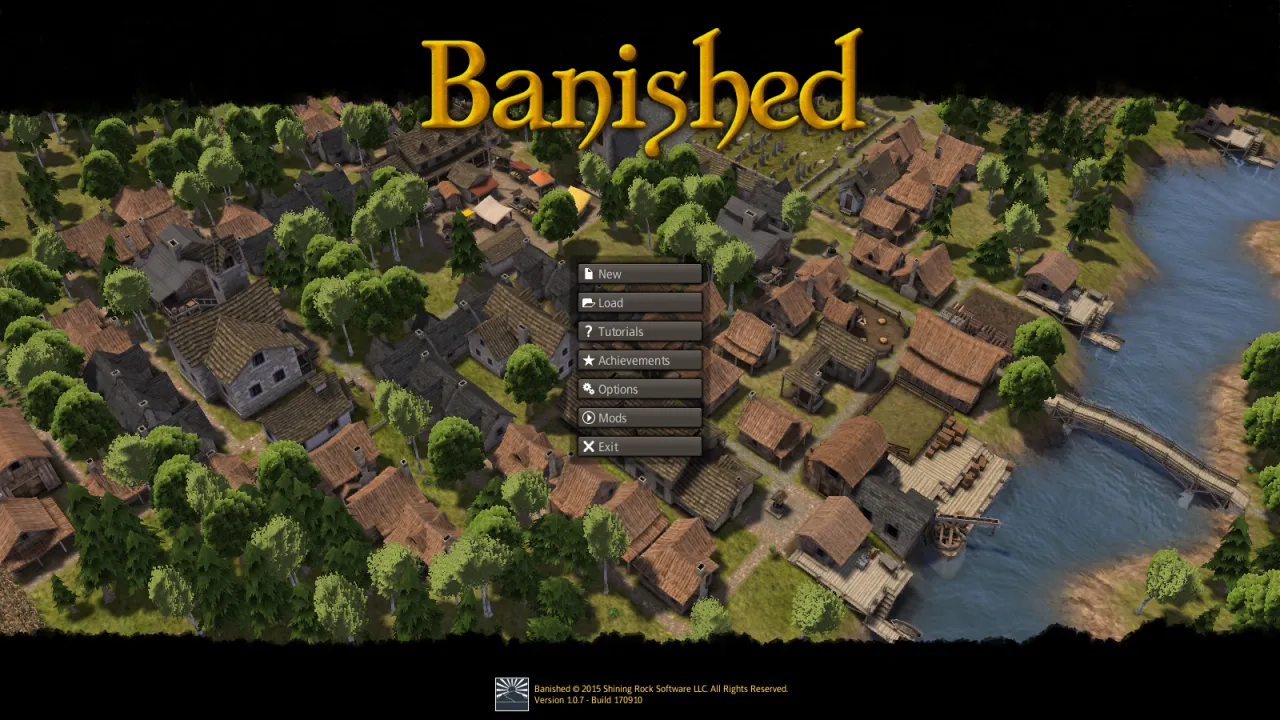
The game then starts like the original. First you see the splash screen and the loading screen. Then you see the main menu, with its music and a 3D town scene. New Game, Load, Tutorials, Achievements, Mods and Options all work.
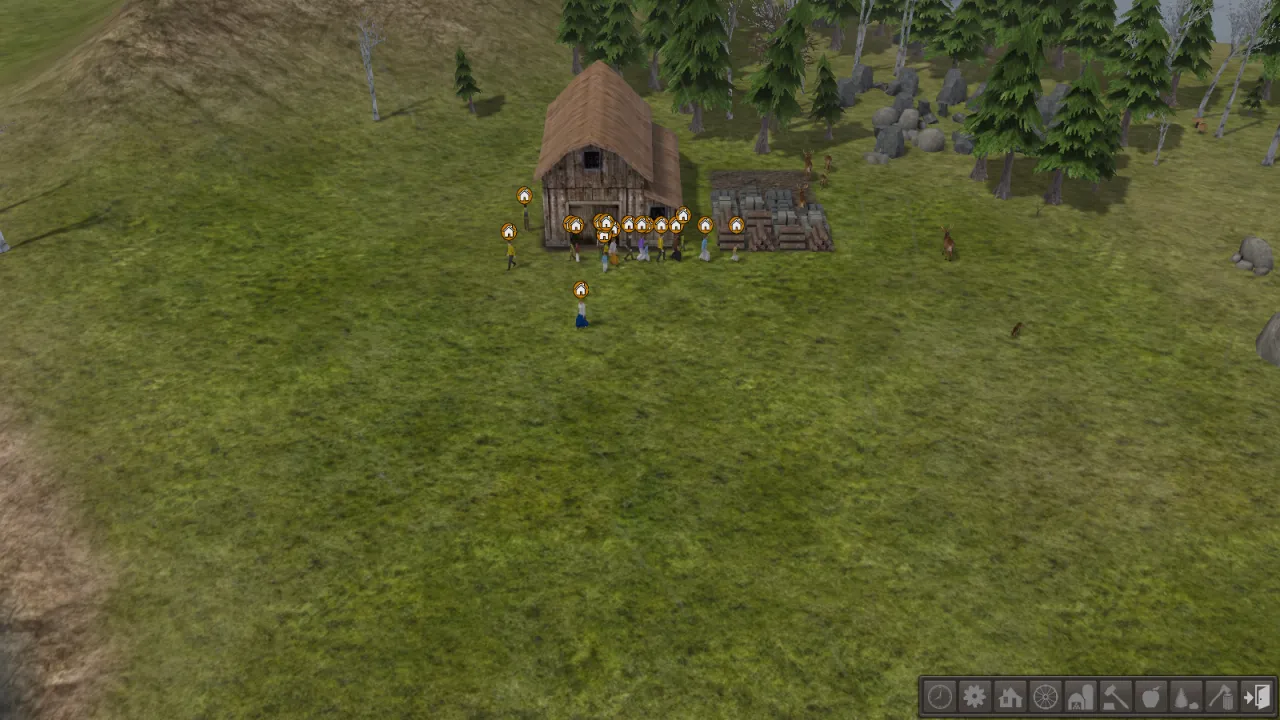
Choose New, keep the default settings, and press OK. Your settlers arrive next to their first stockpile:
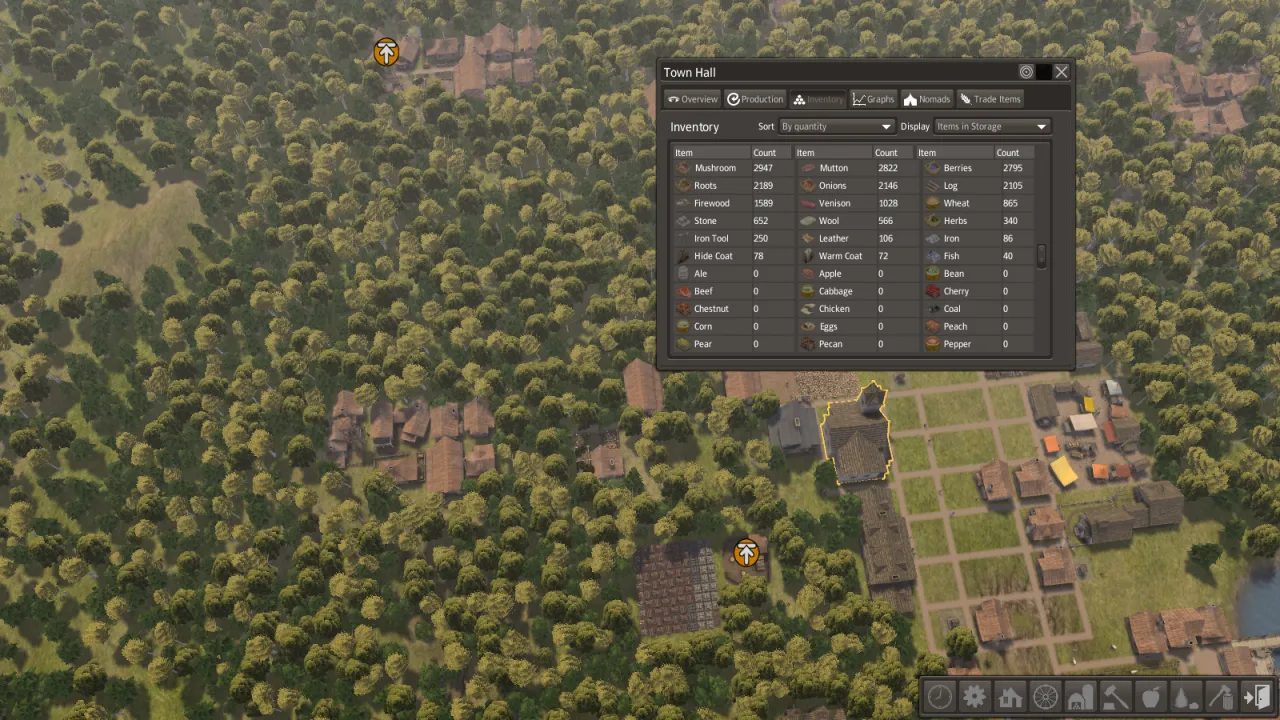
Click a building or a citizen to open its window. This is the Town Hall in a large town:
Play in the browser
The browser version is the same game, built for WebAssembly. The page reads your game files on your computer and does not upload them.
The simple way: open the Play page on the website. You do not need to install anything. Press Start the game, then follow steps 2 and 3 below.
To run the browser version yourself, for example to test a change, you need two more tools. Install them once:
rustup target add wasm32-unknown-unknown
cargo install trunk
Then start the local server from the source folder:
tools/dev-web.sh --app game --release- Open http://127.0.0.1:8733/ in Chrome, Edge or Firefox.
- A Load your game data panel appears at the top left. Press Choose files. Select all four
.pkgfiles fromWinDataat the same time:data0.pkg,data1.pkg,patch0.pkgandpatch1.pkg. To select several files, hold Ctrl (Cmd on a Mac). - Click the game once. Then the game receives your keyboard input, and it can play sound.
If you ran tools/extract-assets.sh, you do not need to choose files. Open http://127.0.0.1:8733/?data=/game-data/ instead. This address loads your copied game data.
Good to know
- It uses WebGPU when the browser supports it, and WebGL 2 when it does not.
- The browser keeps your saves, settings and mods in its storage for this page (see below). If you clear the site's data, you delete them.
tools/dev-web.shis a server for your own computer only. Do not make it available on the internet.
Controls
These are the default controls of the original game. You can change any of them in Options → Input.
Camera
| Action | Default |
|---|---|
| Move | W A S D, or move the pointer to the edge of the screen (Options → Game → Edge Scroll) |
| Rotate | Q / E, or hold the middle mouse button and move the mouse |
| Zoom | Mouse wheel, or Insert / Delete |
| Tilt | Page Up / Page Down |
| Camera presets | Z, X, C, V, B |
Game
| Action | Default |
|---|---|
| Select a building or citizen, place, confirm | Left click |
| Cancel a drag, or put the current tool away | Right click / Esc |
| Pause and resume | Space |
| Toolbar buttons | F1 – F9 |
| Tools in the open toolbar menu | 1 – 9, 0 |
| Turn the building being placed | the Structure Left / Right keys (see Options → Input) |
| Road tool: straight-line paths | hold the Path Method key |
| Screenshot without the interface | Print Screen |
| Screenshot with the interface | Scroll Lock |
On the desktop, screenshots are saved in Documents/Banished/Screenshots. In the browser, they are downloaded.
Saves
| Version | Where saves live |
|---|---|
| Desktop | Documents/Banished/Save/ — the same folder as the original game |
| Browser | the browser's storage (IndexedDB) for the page |
On the desktop, Un-Banished uses the same save format and the same folder as Banished. So towns that you saved in the original game appear in the Load dialog. Autosaves work as in the original (Options → Game). On Windows, the folder is %USERPROFILE%\Documents\Banished\Save. If you moved your Documents folder to another place, Un-Banished does not follow it.
To keep your saves in another place, set BANISHED_USER_DIR to a folder. Un-Banished then uses the Save folder inside it.
Settings
The Options dialog saves its values (video, audio, game options and key bindings) in a settings file:
| System | File |
|---|---|
| Windows | %APPDATA%\banished-wasm\settings.txt |
| macOS | ~/Library/Application Support/banished-wasm/settings.txt |
| Linux | $XDG_CONFIG_HOME/banished-wasm/settings.txt (usually ~/.config/…) |
| Browser | the browser's local storage for the page |
To return to the default settings, delete this file. To use a different settings file, set BANISHED_SETTINGS to its path.
Mods
Un-Banished loads mods made with the BanishedKit (.pkm files), as Banished 1.0.7 does.
- Desktop: put the
.pkmfiles in theWinDatafolder that Un-Banished reads. Then open Mods in the main menu, select the mods you want, set their order, and press OK. The game loads its data again, with the mods. - Browser: select the
.pkmfiles together with the four.pkgfiles. You can also drag them onto the page at any time. Then turn them on in the Mods menu. The browser keeps them in its storage.
As in the original, the Mods menu marks two mods as conflicting when they change the same files. Also as in the original, you cannot earn achievements while mods are turned on.
Command-line options
To play, you need at most one argument: the WinData folder (banished PATH). The other commands draw one picture and then stop. They are for testing, and for the screenshots in these documents:
| Command | Effect |
|---|---|
banished PATH | play, reading the game data from this WinData folder |
banished --version | show the Un-Banished version (see Version) and stop |
banished --boot-capture FILE.png SECONDS | start the game, run it for SECONDS and save that frame |
banished --capture FILE.png [options] | generate a map and save a picture of it |
Options for the captures: --seed N, --terrain NAME, --size 0|1|2, --month 0..11, --view overview, --ui-scale PERCENT and --setting KEY=VALUE (a stored setting by its original name, such as VideoReflectionDetail=2). Captures do not use your saved settings.
Environment variables: BANISHED_USER_DIR (the folder that holds Save), BANISHED_SETTINGS (the settings file), RUST_LOG (how much detail the log shows, for example RUST_LOG=debug).
Version
Un-Banished has its own version number, for example 0.1.0-1382712. The first part is the release. The second part is the build: the first seven characters of the git commit the program was built from. -dirty at the end means that the program was built with changes that were not committed. unknown means that the build could not be found, for example in a build from a source archive without git.
You can see the version in these places:
banished --versionshows it, for exampleUn-Banished 0.1.0-1382712.- The first line of the log, when the game starts.
- In the browser: under the status line of the Load your game data panel, and in the browser's console.
- On the website, at the bottom of the pages.
The main menu shows "Version 1.0.7 - Build 170910". That is the version of Banished, from the game data. It does not change. Give both versions when you report a problem.
Troubleshooting
"No .pkg files found." Un-Banished cannot find the game data. Give the WinData folder on the command line, put the program next to WinData, or run tools/extract-assets.sh.
tools/extract-assets.sh says that it cannot find Banished. Set BANISHED_DIR to the folder that contains WinData, and run the script again.
The browser page still shows "Load your game data". Select all four .pkg files at the same time. If the page reports a parse error, one of the files is damaged or incomplete. In Steam, right-click Banished, choose Properties → Installed Files → Verify integrity of game files, and try again.
The window is black, or a graphics error appears at start. Update your graphics drivers. On Linux, check that the Vulkan drivers are installed: vulkaninfo must show your graphics card.
There is no sound in the browser. Browsers play sound only after you click or type on the page. Click the game once.
After an update, my Un-Banished settings look wrong. Delete the settings file (see Settings).
Reporting a difference from the original
The goal of Un-Banished is to work exactly like Banished 1.0.7. If something looks, sounds or works differently, or does not work, please open an issue. The forms there ask for the information we need:
- Parity difference: what the original does, what Un-Banished does, and how to see it.
- Bug report: something broken or impossible to do.
- Performance problem: stutters, slowdowns, long loads.
Screenshots or a short video from both games are very useful. Do not attach the game's own files (.pkg, .exe, or extracted art or sound).
DEVIATIONS.md lists the known, intentional differences. PARITY-AUDIT.md shows what has been checked.