
The browser version
The browser version is the same game, built for WebAssembly. The page reads your game files on your computer and does not upload them.
The simple way: open the Play page on the website. You do not need to install anything. Press Start the game, then follow steps 2 and 3 below.
To run the browser version yourself, for example to test a change, you need two more tools. Install them once:
rustup target add wasm32-unknown-unknown
cargo install trunk
Then start the local server from the source folder:
tools/dev-web.sh --app game --release- Open http://127.0.0.1:8733/ in Chrome, Edge or Firefox.
- The loading screen appears. Press Choose files. Select all four
.pkgfiles fromWinDataat the same time:data0.pkg,data1.pkg,patch0.pkgandpatch1.pkg. To select several files, hold Ctrl (Cmd on a Mac). - Click the game once. Then the game receives your keyboard input, and it can play sound.
Next time. The game keeps the four game files in this browser, so you choose them only once (uncheck Keep them in this browser if you do not want that). When you open the game again, the start page does not show the steps. It shows Start the game, a Help button that shows the steps again, and a manager for what the browser keeps, with three tabs:
- Game files: the kept files and their sizes. Forget the game files removes them; then you choose them again.
- Mods: turn each mod on or off, and move it up or down. The order is the order the mods load in: a mod lower in the list wins. Remove deletes a mod; Add mods (.pkm) adds more.
- Saves: your saves, newest first. Download keeps a copy on your computer, Delete removes a save, and Import saves (.sav) adds saves from the desktop version or the original game.
The game reads these when the page opens, so the page reloads after each change.
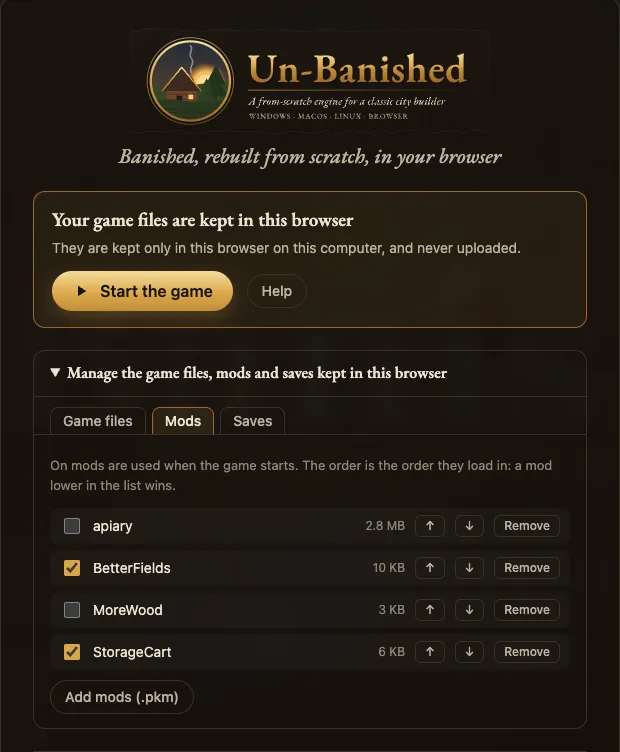
The files are kept only in this browser on this computer, in the site's own storage, and are never uploaded. Clearing the site's data in the browser removes them too, with the saves.
If you ran tools/extract-assets.sh, you do not need to choose files. Open http://127.0.0.1:8733/?data=/game-data/ instead. This address loads your copied game data.
Full screen, resolution and frame rate. In the game's Options:
- Fullscreen shows the game full screen. The browser starts the game in its page, so this box starts unchecked; check it to go full screen, and press Esc to leave. On the Play page, the Full screen button below the game does the same.
- Resolution draws the 3D world at 100 %, 75 % or 50 % of the page's size. A lower value is faster on slow computers, tablets and phones; the menus and text stay sharp.
- Refresh rate limits the frames per second: 30, 60, 90 or 120. A lower value saves battery and keeps devices cooler.
Install as an app. In Chrome or Edge, the address bar offers to install Un-Banished (on Android: the browser menu, then Install app or Add to home screen). It then opens in a window of its own, and starts without an internet connection. Your game files, saves and mods stay in the browser as before.
Exit. In the installed app, Exit closes its window. In a browser tab, a page cannot close itself, so Exit goes back to the start page; on the Play page it goes back to the Start the game button.
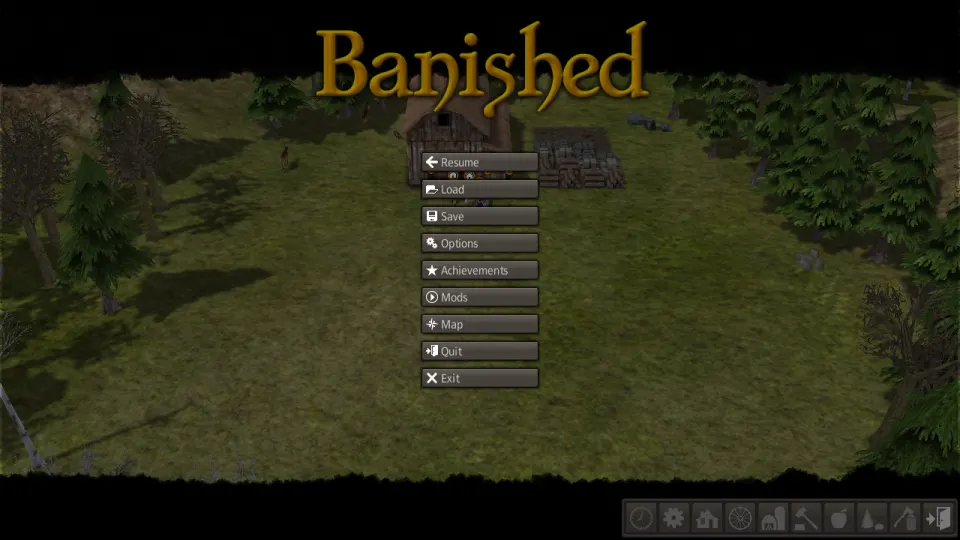
Sharp on every screen. On screens with a high pixel density and a fractional scale (4K monitors, tablets, Samsung DeX), the menus and text are drawn on whole screen pixels, so they stay sharp.
Good to know
- It uses WebGPU when the browser supports it, and WebGL 2 when it does not.
- The browser keeps your saves, settings and mods in its storage for this page (see below). If you clear the site's data, you delete them.
tools/dev-web.shis a server for your own computer only. Do not make it available on the internet.